

AI-NET Real Browser Edition — User Guide
Watch and bid in live auctions in real time from your browser. You can also install it as an app and launch it straight from your home screen.
Before You Start — System Requirements
| Item | Requirement |
|---|---|
| Computer | Works on both Windows and Mac |
| Browser | Latest Google Chrome (other browsers are not supported) |
| Connection | A stable always-on line of 1 Mbps or faster, such as fibre or 4G/5G |
| Corporate network | If you are behind a firewall, allow WebSocket traffic on ports 8888 and 8989 |
The previous app version was Windows software and could not be used on a Mac. The browser edition runs on both Windows and Mac, as long as you have Chrome.
On an unstable connection, prices and audio may drop out, and you may be returned to the venue selection screen automatically.
Install as an App
You can carry on using it in the browser, but installing it on your device is recommended. It launches straight from your home screen or desktop, and the address bar and tabs disappear, giving the auction screen more room.
| Device | Steps |
|---|---|
| PC (Chrome) | Press install_desktop at the right of the address bar and choose Install |
| Android (Chrome) | Open the more_vert menu at the top right and choose Install app |
| iPhone / iPad (Safari) | Press ios_share at the bottom and choose Add to Home Screen |
Start-up is faster from the second launch onward. If the connection drops, a screen appears prompting you to check it.
Installing changes neither how you log in nor how you operate the screen. Remove it the same way as any other app.
Step 1 — Log In
Enter three items on the login screen. All three are issued by Arai Auctions.
| Field | How to enter it |
|---|---|
| Login ID | Single-byte alphanumerics. Letters are uppercase |
| Password | Single-byte alphanumerics. Case sensitive |
| User ID | Single-byte alphanumerics. Case sensitive |
If you see "This ID is already logged in", the same account is open on another device or tab. Log out there and try again.
Step 2 — Choose a Venue
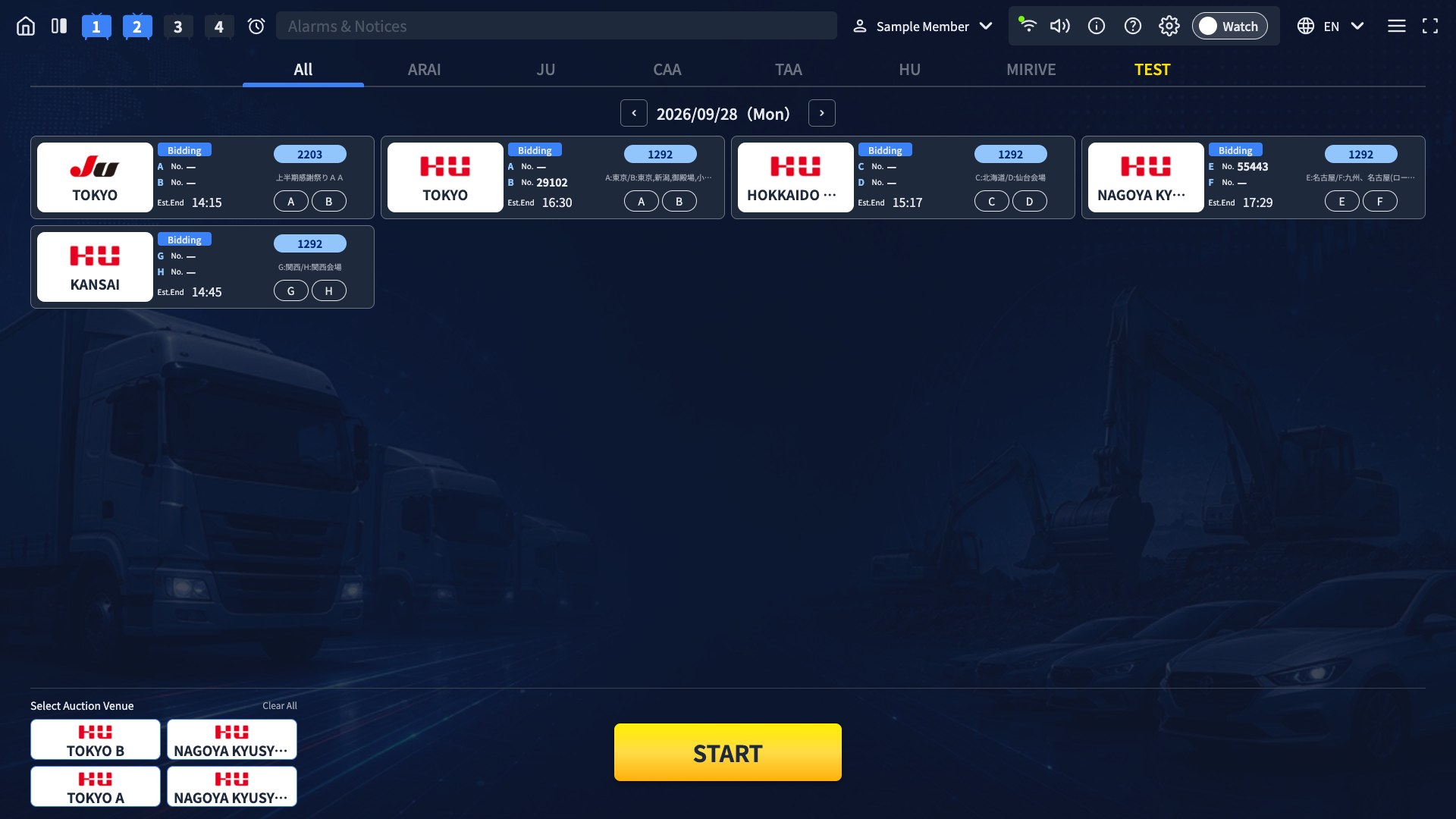
The venue selection screen opens after you log in.
- Narrow the list by group using the tabs at the top (ARAI / JU / CAA and so on)
- Click the card for the venue you want
- At venues with more than one lane, pick a lane with the A, B and other buttons. Pressing the venue
logo picks every lane on that card at once (into the free pair 1 and 2, or 3 and 4; press again to clear)
Each card shows the current state of the sale: Bidding, Upcoming or Ended. Est.End is the scheduled finish time.
Step 3 — Assign Channels

Clicking a venue card adds it to a channel slot along the bottom of the screen.
- You can show up to four venues at once
- Press START when you have finished assigning
Step 4 — The Auction Screen
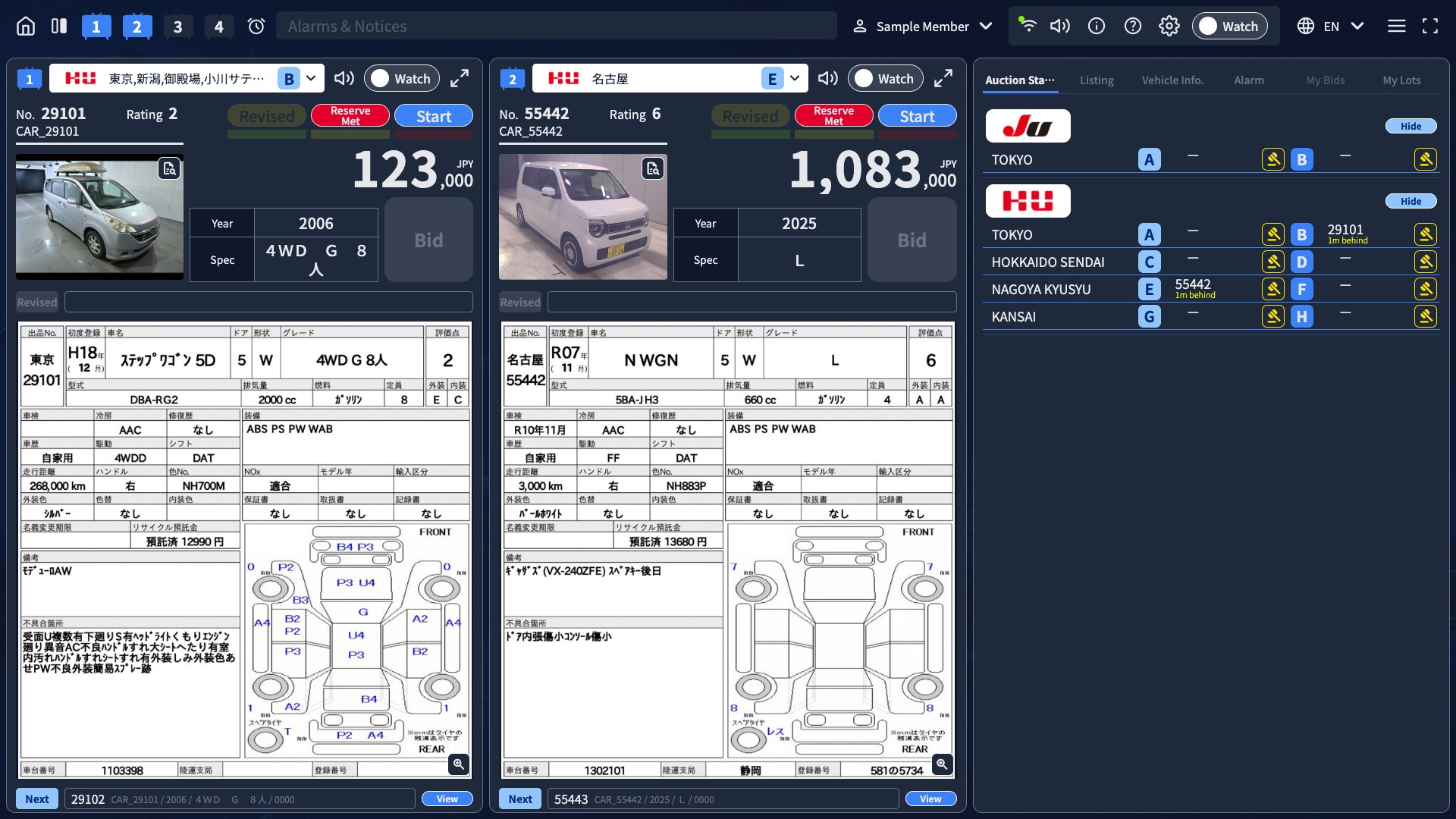
START opens the auction screen, where the sales you selected run in real time.
Reading the Panel
| Item | Description |
|---|---|
| No. | The lot currently under the hammer |
| Model and Rating | Vehicle name and condition score |
| Price (JPY ,000) | The current price. Updates in real time |
| Ribbon | The state of the sale. See the table below |
| Next | The next lot. Press View to see the details |
Ribbon Meanings
The colour and text below match the actual screen.
| Ribbon | Meaning |
|---|---|
| Start | Bidding has opened |
| Revised | The listing details, such as price or specification, have been corrected |
| Reserve Met | Sells to the highest bidder when time runs out. If lit from the start, it may go unsold if no bids are placed. |
| Sold | The lot has sold |
| Sold (Ext) | The lot has sold to a bid from outside the venue |
| Unsold | No sale. Nobody bid |
Placing a Bid
To bid, set the mode to Bid. Each panel has its own Watch / Bid toggle, and the toggle in the header switches every panel at once.
- Switching to Bid enables the Bid button
- While the sale is running, press Bid to place a bid. Each press raises the price (the increment varies by venue and how the sale is progressing)
- Venues you are not registered for do not allow bidding; switching to Bid reverts to Watch
- You cannot bid on vehicles your own company has entered
Confirming Your Winning Bid
When you win a lot, a Confirm Winning Bid panel appears on that panel. It shows the No. and the bid amount; press Confirm to close it. It does not block operations on other lanes. A bell rings if sound is on for that panel.
Switching the Panel Layout
Click the layout icon at the left of the header to cycle through 1-Screen, 2-Screen and 4-Screen. The icon changes to match the current mode.
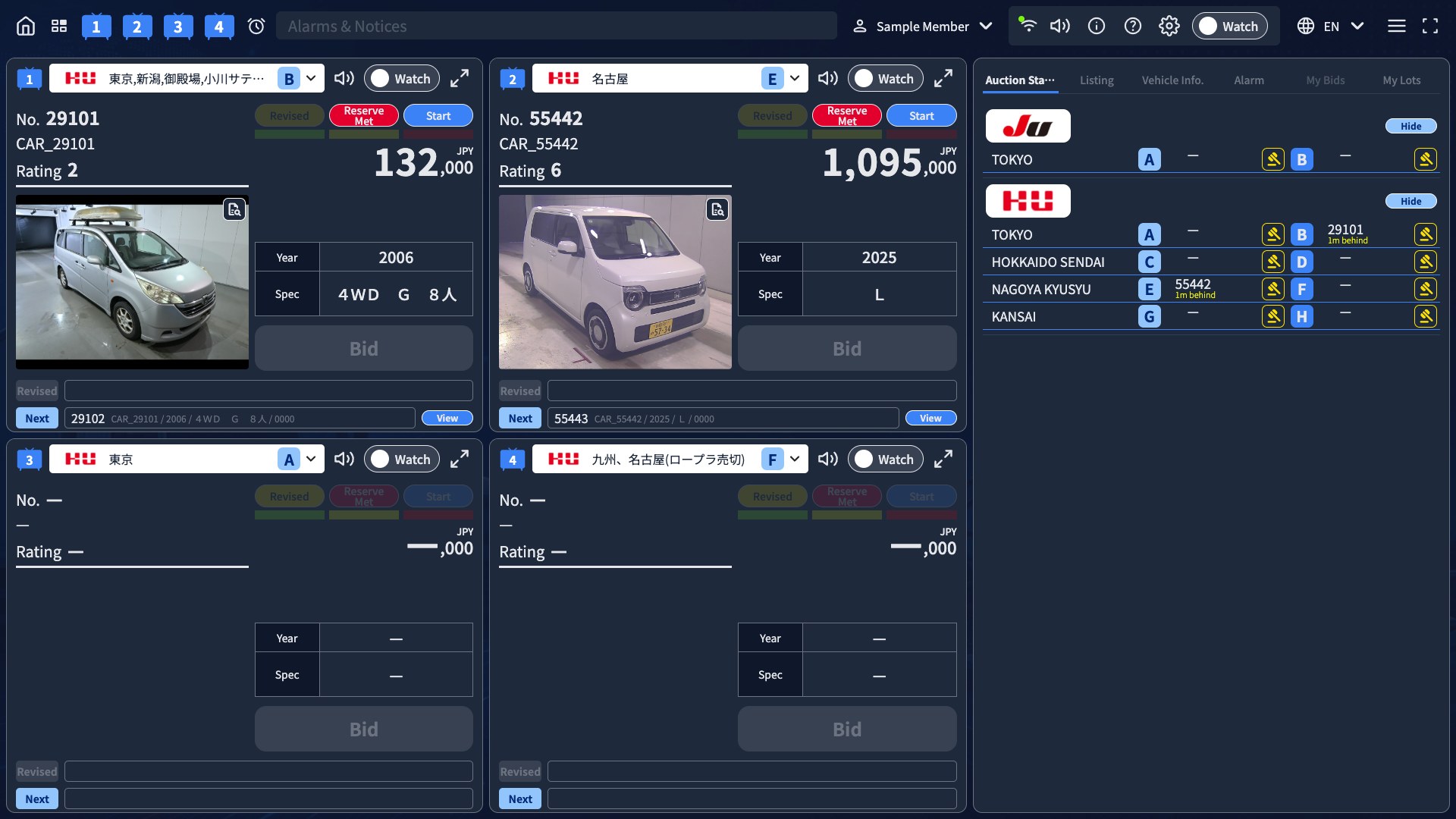
| Icon | Mode | Description |
|---|---|---|
| crop_square | 1-Screen | One venue, shown large |
| splitscreen_right | 2-Screen | Two venues side by side (the default) |
| tile_small | 4-Screen | Up to four venues at once |
Press  at the top right of a panel to enlarge that panel on its own. While enlarged the icon becomes close_fullscreen; press it to go back.
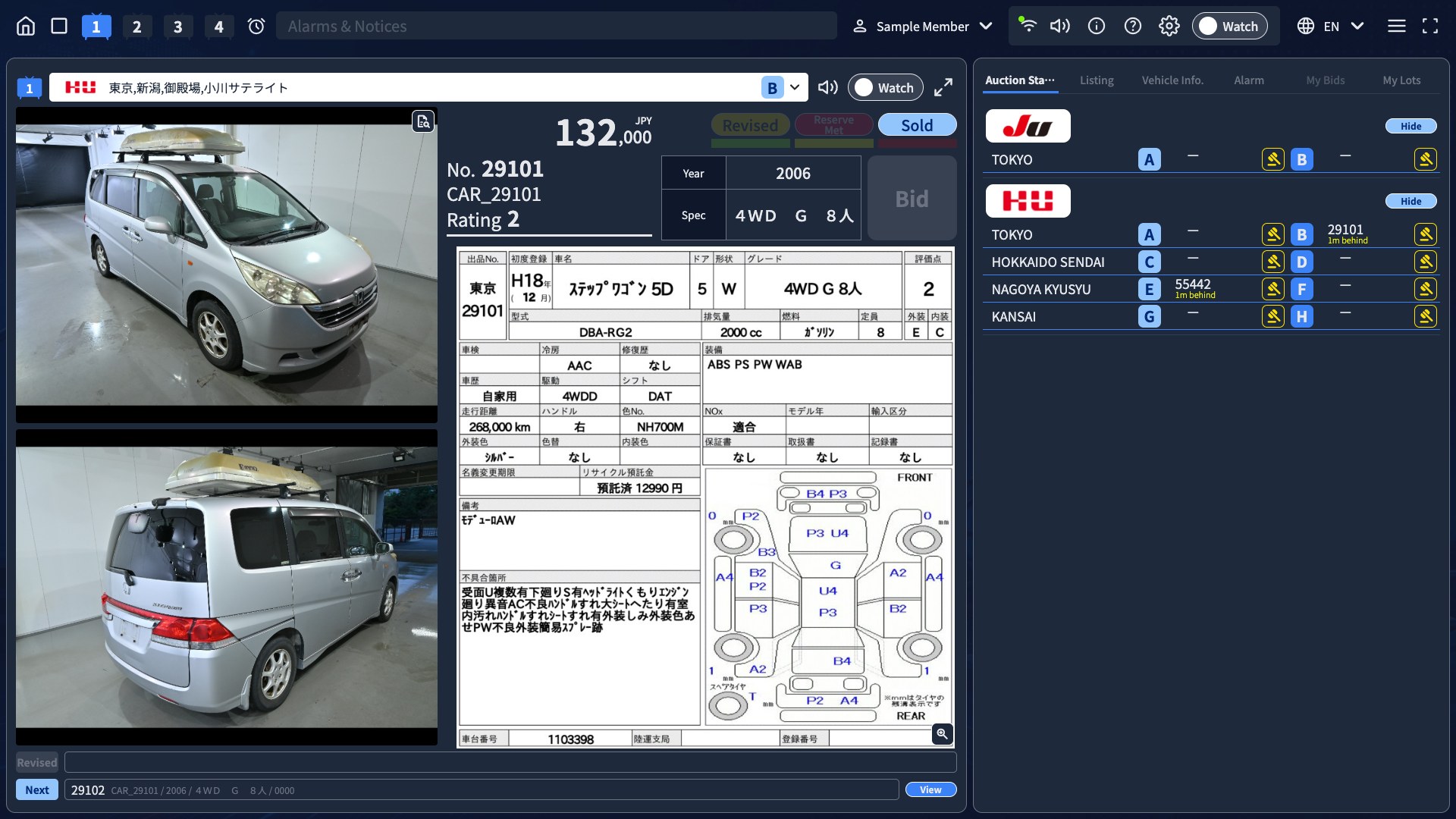
Viewing Vehicle Details
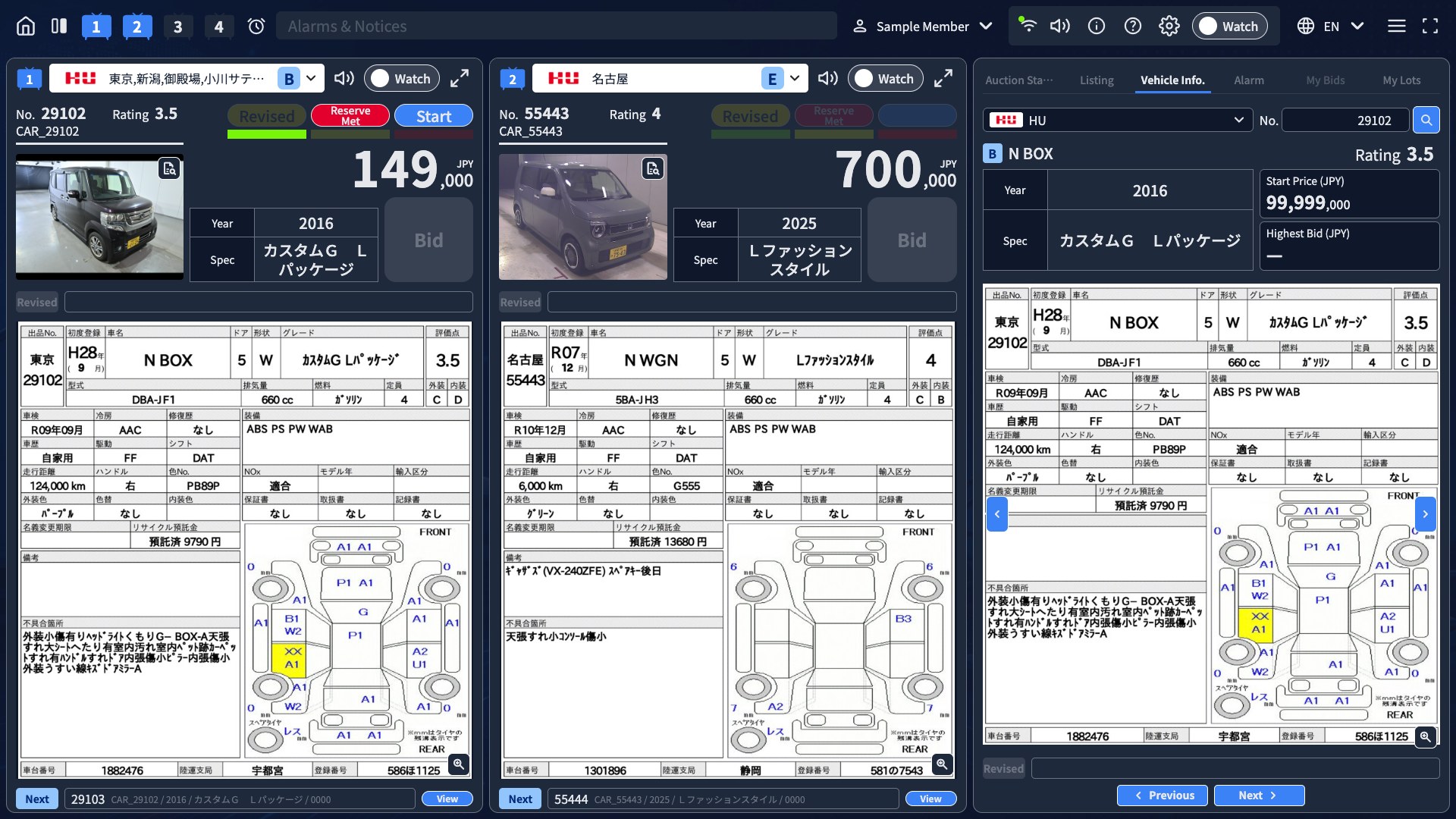
Open the Vehicle Info. tab on the right, or press View on the Next row at the bottom of a panel.
- Specifications such as model, grade, year and rating
- Start Price and Highest Bid
- The assessment sheet image
- Pick a venue and enter a No. to look up any vehicle
- Use ‹ › at the bottom of the panel to move to the previous or next vehicle
- You can check the next lot while the current sale is still running
Auction Status
The panel on the right switches between Auction Status, Listing, Vehicle Info. and Alarm with tabs. Auction Status is open by default on the auction screen.
- For each venue you have added, it shows the lot now under the hammer (Now) and the next lot
- Venues with more than one lane are shown per lane (A, B)
- It shows how the sale is running against schedule (On time, m behind, m ahead)
- Use View / Hide to choose whether that venue appears in the panels
Using Alarms
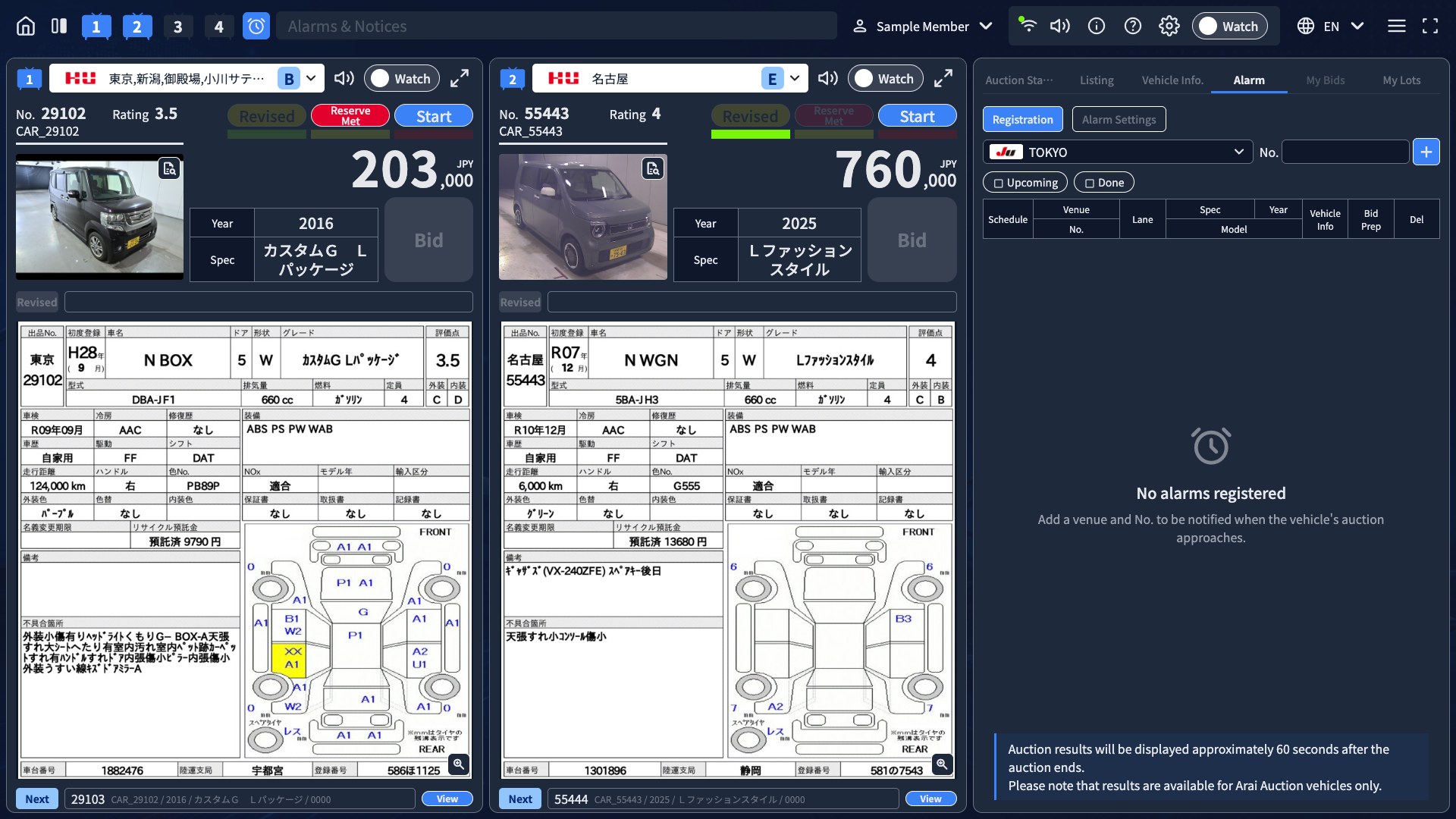
Click alarm in the header to open the alarm panel.
- Choose a venue
- Enter the No.
- Press + to register it
You are notified on screen and by sound when the registered lot comes up. The header notice
shows "Alarm vehicle approaching. No. xx venue" and stays until that lot is called.
Your own lots are added to the list automatically and announced as "Your vehicle approaching"
with a dedicated voice. A lot you delete from the list is not added again that day.
Press volume_up at the right end to mute the alarm sound for that vehicle only (the notice stays).
Deleting a notified vehicle from the alarm list stops its sound and removes it from the notice area.
When the alarm sound is off in Settings it starts as volume_off, and pressing it turns the sound on.
When several lots are approaching, the notice switches every 2 seconds, and keyboard_arrow_down
at the right end opens a list where you can mute each vehicle.
A popup with the alarm list also opens at the lower right of the screen and the matching row turns yellow.
Close it with the ✕ at the top right. It opens again when the next registered lot comes up.
The volume_up in the Mute column silences the alarm for that vehicle only (blank for lots not yet near).
The gavel in the Bid column opens a channel picker when pressed.
Drag its title to move it. The popup stays open in the same place when you move to the venue
selection screen and back.
The popup frame also turns yellow while any lot is being notified.
Below the table on the Alarm panel, a note explains that results appear about 60 seconds after
the auction ends and only for Arai Auction lots.
Use the Upcoming and Done filters to switch between lots still to come and lots already sold.
Change the timing, the alarm sound and the popup on or off under the Alarm Settings tab.
Header Icons

Left Side
| Icon | Name | Function |
|---|---|---|
 | Home | Return to the venue selection screen |
| splitscreen_right | Panel layout | Switch between 1-Screen, 2-Screen and 4-Screen |
| alarm | Alarm | Open the alarm panel. Turns yellow when a registered lot is near |
The channel numbers 1 to 4 sit to the right of the layout icon. A channel turns blue once a venue is assigned to it, and clicking steps through which channel is shown. The message field to their right carries alarm notices and announcements from the operator.
Right Side
| Icon | Name | Function |
|---|---|---|
| person | Account | Your member name. Click to open the menu and log out |
| wifi | Connection quality | Your connection status. A green, yellow or red dot marks good, fair or poor |
 | Sound | Mute or unmute every channel at once. Each panel's sound button follows. The state carries over between the venue selection and auction screens, and returns to the "Auction Audio" setting when you log in again |
| info | Info | Open the panel explaining the basic controls |
| help | User guide | Open this guide in a new tab |
 | Settings | Set your default venues, language and audio |
| language | Language | Switch between Japanese and English |
 | Menu | Open the entry points to all the function panels |
| fullscreen | Full Screen | Switch to full screen. Press fullscreen_exit to leave it |
The Watch and Bid toggle switches bidding mode. It sits between the settings and language icons.
Differences from the App Version
For those who used the previous app version, here is a summary of what has changed in the browser edition. Anything not listed here works the same way as before.
What has changed
| Item | Previous app version | Browser edition |
|---|---|---|
| Highest-bidder mark | Shown as a Japanese text label | Shown as a crown icon crown |
| Next lot display | On single-lane venues, the image, model and start price were shown | The lot number only (press View for details) |
| Listing corrections | A yellow band at the bottom of the screen | A Revised ribbon (yellow) and a correction mode in the footer |
| When a no-sale is near | Remaining time as a 7-step number | Remaining time as a number (up to 6, 8 or 10 depending on the venue) |
| When the connection drops | Returned to the menu after 5 seconds, or switched to Watch | Reconnects automatically (returns to venue selection if the line stays poor) |
| Carrying over alarms | All entries cleared when the sale round changed | Kept (only entries from before the most recent 2 a.m. are cleared at login) |
| Moving the date on venue selection | Any date, via the previous/next-day buttons | Up to two days either way |
| Member display | AINET ID, account name and POSNO | Per user. Header: account name. Menu: user ID, account name, POSNO |
Features not carried over
The following features from the previous app version are not provided in the browser edition.
- Bidding with a gamepad (controller). Please bid with the on-screen Bid button
- The app's own handling of keyboard shortcuts (F1–F12 and Ctrl-key combinations). These now follow your browser's standard behaviour (for example, F5 reloads the page)
- Hover and click sounds on the buttons
Frequently Asked Questions
I cannot log in
- Check that all three of the Login ID, Password and User ID are correct, including single-byte characters and letter case
- If you see "This ID is already logged in", press the "Log out" button that appears on the login screen, then log in again
I forgot my password
- You can reset it from "Forgot password?" on the login screen, or from the password reset page
There is no sound
- Check that on that panel is not muted (
 ). Pressing in the header turns sound on for every panel at once
 - On a smartphone, tapping the screen once may be needed before audio starts
- Some venues do not carry audio
The screen has frozen or looks wrong
- Reload the page, or press in the header to return to the venue selection screen and start again
Pressing Home took me back to the login screen
If the browser has been left idle for about 60 minutes, your login session expires.
Log in again to continue.
The Bid button does nothing
- The toggle in the header is set to Watch. Press it to switch to Bid
- Venues you are not registered for do not allow bidding. Switching the toggle to Bid will show "You do not have bidding permission for this venue (view only)" and revert to Watch
- You cannot bid on vehicles your own company has entered